tech journal

Tuesday, September 30, 2008

sept. 30, 2008

Yes I would take robotics class to know more about them and who they work and who invinted the frist robtics. And I would lean programing class to inprouve may leaning to creat different 3D animatin video's and 3D effcce.

I would like to stay with a 4 period day then a 7 period day so we do not have a lot of homework.

Tuesday, September 23, 2008

powerpoint

I like looking at the powerponits because it help me under stand what I needed to know so if do a projoct.

Tuesday, September 9, 2008

PC

In a way, the skyrocketing popularity of laptop computers is ironic. They're completely portable, and they use less power and make less noise than desktop models. But, they're often a little slower and have less graphics and sound processing power, although these differences can be too small for most users to notice.

Laptops are also more expensive than desktops. The price gap is closing, though -- laptop prices are falling faster than desktop prices, and laptop PCs actually outsold desktop models for the first time in May of 2005 [Source: Windows IT Pro].

How can all the equipment found in a desktop tower fit into such a small package? And how can laptops be efficient enough to run on battery power alone? In this article, you'll discover the answers to these and other questions about laptops.

Overall, lap­top and desktop computers are very similar. They have the same basic hardware, software and operating systems. The primary difference is how their components fit together.

A desktop computer includes a motherboard, video card, hard drive and other components in a large case. The monitor, keyboard, and other peripherals connect wirelessly or with cables. Whether the case sits vertically or horizontally, it has lots of space for add-in cards, cables and air circulation.

The inside of a PC tower The inside of a PC tower

A laptop, however, is much smaller and lighter than even the most compact PC tower. Its screen is an integrated part of the unit, as is its keyboard. Instead of a spacious case with lots of room for air circulation, a laptop uses a small, flat design in which all the pieces fit together snugly.

The inside of an IBM ThinkPad

Because of this fundamental design difference and because of a laptop's inherent portability, components have to:

  • Fit into a compact space
  • Conserve power
  • Produce less heat than desktop components

Often, these differences make the components more expensive, which can contribute to higher laptop prices.

In the following sections, we'll examine how laptops handle these differences.

How to Install RAMMost of the time, installing RAM is a very simple and straightforward procedure. The key is to do your research. Here's what you need to know:
How much RAM you have
How much RAM you wish to add
Form factor
RAM type
Tools needed
Warranty
Where it goes RAM is usually sold in multiples of 16 megabytes: 16, 32, 64, 128, 256, 512, 1024 (which is the same as 1GB). This means that if you currently have a system with 64 MB RAM and you want at least 100 MB RAM total, then you will probably need to add another 64 MB module.
Once you know how much RAM you want, check to see what form factor (card type) you need to buy. You can find this in the manual that came with your computer, or you can contact the manufacturer. An important thing to realize is that your options will depend on the design of your computer. Most computers sold today for normal home/office use have DIMM slots. High-end systems are moving to RIMM technology, which will eventually take over in standard desktop computers as well. Since DIMM and RIMM slots look a lot alike, be very careful to make sure you know which type your computer uses. Putting the wrong type of card in a slot can cause damage to your system and ruin the card.
You will also need to know what type of RAM is required. Some computers require very specific types of RAM to operate. For example, your computer may only work with 60ns-70ns parity EDO RAM. Most computers are not quite that restrictive, but they do have limitations. For optimal performance, the RAM you add to your computer must also match the existing RAM in speed, parity and type. The most common type available today is SDRAM.
Additionally, some computers support Dual Channel RAM configuration either as an option or as a requirement. Dual Channel means that RAM modules are installed in matched pairs, so if there is a 512MB RAM card installed, there is another 512 MB card installed next to it. When Dual Channel is an optional configuration, installing RAM in matched pairs speeds up the performance of certain applications. When it's a requirement, as in computers with the Mac G5 chip(s), the computer will not function properly without matched pairs of RAM chips.
For complete guidelines on setting up Dual Channel configuration on Intel Pentium 4-based systems, check out this guide.

Before you open your computer, check to make sure you won't be voiding the warranty. Some manufacturers seal the case and request that the customer have an authorized technician install RAM. If you're set to open the case, turn off and unplug the computer. Ground yourself by using an anti-static pad or wrist strap to discharge any static electricity. Depending on your computer, you may need a screwdriver or nut-driver to open the case. Many systems sold today come in tool-less cases that use thumbscrews or a simple latch.

Mac G4 motherboard for RAM
PC motherboard for RAM
To install more RAM, look for memory modules on your computer's motherboard. At the left is a Macintosh G4 and on the right is a PC.

The actual installation of the memory module does not normally require any tools. RAM is installed in a series of slots on the motherboard known as the memory bank. The memory module is notched at one end so you won't be able to insert it in the wrong direction. For SIMMs and some DIMMs, you install the module by placing it in the slot at approximately a 45-degree angle. Then push it forward until it is perpendicular to the motherboard and the small metal clips at each end snap into place. If the clips do not catch properly, check to make sure the notch is at the right end and the card is firmly seated. Many DIMMs do not have metal clips; they rely on friction to hold them in place. Again, just make sure the module is firmly seated in the slot.

Once the module is installed, close the case, plug the computer back in and power it up. When the computer starts the POST, it should automatically recognize the memory. That's all there is to it!

For more information on RAM, other types of computer memory and related topics, check out the links on the next page.

Monday, September 8, 2008

System Information: Scanning your system and give a complete report about your computer's hardware and software, for examples: mainboard information, video system information, PCI / AGP buses information, peripheral (keyboard, mouse, printer, etc.) information, Windows registry settings, and network information.
system Benchmarks: Testing your system performance, such as CPU, hard disk, CD/DVD ROM, and compare it with other systems.

CPU

Fresh Diagnose is a utility designed to analyze and benchmark your computer system. It can analyze and benchmark many kinds of hardware, such as CPU performance, hard disk performance, video system information, mainboard / motherboard information, and much more...


If you have been shopping for a computer, then you have heard the word "cache." Modern computers have both L1 and L2 caches, and many now also have L3 cache. You may also have gotten advice on the topic from well-meaning friends, perhaps something like "Don't buy that Celeron chip, it doesn't have any cache in it!"

It turns out that caching is an important computer-science process that appears on every computer in a variety of forms. There are memory caches, hardware and software disk caches, page caches and more. Virtual memory is even a form of caching. In this article, we will explore caching so you can understand why it is so important.

A PC is a general purpose tool built around a microprocessor. It has lots of different parts -- memory, a hard disk, a modem, etc. -- that work together. "General purpose" means that you can do many different things with a PC. You can use it to type documents, send e-mail, browse the Internet and play games.

In this article, we will talk about PCs in the general sense and all the different parts that go into them. You will learn about the various components and how they work together in a basic operating session. You'll also find out what the future may hold for these machines.

Let's take a look at the main components of a typical desktop computer.

  • Central processing unit (CPU) - The microprocessor "brain" of the computer system is called the central processing unit. Everything that a computer does is overseen by the CPU.

  • Memory - This is very fast storage used to hold data. It has to be fast because it connects directly to the microprocessor. There are several specific types of memory in a computer:
    • Random-access memory (RAM) - Used to temporarily store information that the computer is currently working with
    • Read-only memory (ROM) - A permanent type of memory storage used by the computer for important data that does not change
    • Basic input/output system (BIOS) - A type of ROM that is used by the computer to establish basic communication when the computer is first turned on
    • Caching - The storing of frequently used data in extremely fast RAM that connects directly to the CPU
    • Virtual memory - Space on a hard disk used to temporarily store data and swap it in and out of RAM as needed

Ram

  • SRAM: Static random access memory uses multiple transistors, typically four to six, for each memory cell but doesn't have a capacitor in each cell. It is used primarily for cache.
  • DRAM: Dynamic random access memory has memory cells with a paired transistor and capacitor requiring constant refreshing.
  • FPM DRAM: Fast page mode dynamic random access memory was the original form of DRAM. It waits through the entire process of locating a bit of data by column and row and then reading the bit before it starts on the next bit. Maximum transfer rate to L2 cache is approximately 176 MBps.
  • EDO DRAM: Extended data-out dynamic random access memory does not wait for all of the processing of the first bit before continuing to the next one. As soon as the address of the first bit is located, EDO DRAM begins looking for the next bit. It is about five percent faster than FPM. Maximum transfer rate to L2 cache is approximately 264 MBps.
  • SDRAM: Synchronous dynamic random access memory takes advantage of the burst mode concept to greatly improve performance. It does this by staying on the row containing the requested bit and moving rapidly through the columns, reading each bit as it goes. The idea is that most of the time the data needed by the CPU will be in sequence. SDRAM is about five percent faster than EDO RAM and is the most common form in desktops today. Maximum transfer rate to L2 cache is approximately 528 MBps.
  • DDR SDRAM: Double data rate synchronous dynamic RAM is just like SDRAM except that is has higher bandwidth, meaning greater speed. Maximum transfer rate to L2 cache is approximately 1,064 MBps (for DDR SDRAM 133 MHZ).
  • RDRAM: Rambus dynamic random access memory is a radical departure from the previous DRAM architecture. Designed by Rambus, RDRAM uses a Rambus in-line memory module (RIMM), which is similar in size and pin configuration to a standard DIMM. What makes RDRAM so different is its use of a special high-speed data bus called the Rambus channel. RDRAM memory chips work in parallel to achieve a data rate of 800 MHz, or 1,600 MBps. Since they operate at such high speeds, they generate much more heat than other types of chips. To help dissipate the excess heat Rambus chips are fitted with a heat spreader, which looks like a long thin wafer. Just like there are smaller versions of DIMMs, there are also SO-RIMMs, designed for notebook computers.
  • Credit Card Memory: Credit card memory is a proprietary self-contained DRAM memory module that plugs into a special slot for use in notebook computers.
  • PCMCIA Memory Card: Another self-contained DRAM module for notebooks, cards of this type are not proprietary and should work with any notebook computer whose system bus matches the memory card's configuration.
  • CMOS RAM: CMOS RAM is a term for the small amount of memory used by your computer and some other devices to remember things like hard disk settings -- see Why does my computer need a battery? for details. This memory uses a small battery to provide it with the power it needs to maintain the memory contents.
  • VRAM: VideoRAM, also known as multiport dynamic random access memory (MPDRAM), is a type of RAM used specifically for video adapters or 3-D accelerators. The "multiport" part comes from the fact that VRAM normally has two independent access ports instead of one, allowing the CPU and graphics processor to access the RAM simultaneously. VRAM is located on the graphics card and comes in a variety of formats, many of which are proprietary. The amount of VRAM is a determining factor in the resolution and color depth of the display. VRAM is also used to hold graphics-specific information such as 3-D geometry data and texture maps. True multiport VRAM tends to be expensive, so today, many graphics cards use SGRAM (synchronous graphics RAM) instead. Performance is nearly the same, but SGRAM is cheaper.
  • Thursday, September 4, 2008

    Alienwere

    The ALX Advantage

    The Alienware ALX delivers exactly what you would expect from the industry’s most sophisticated high-performance desktop computer. Features such as an Intel® Core™ 2 Extreme CPU, NVIDIA® SLI™ technology and low latency memory come standard on every ALX to generate the highest benchmarks and the fastest, most intense graphics. The chrome accented case communicates that you appreciate a touch of luxury in your life. By choosing an Alienware ALX desktop computer, you join an elite club of the most discerning computer enthusiasts in the world.

    Extreme Technology

    By equipping every ALX desktop with the raw energy of the Intel Core 2 Extreme processor, you can unleash the unparalleled performance of the world’s fastest CPU. The newest QX9770 Intel Core 2 Extreme packs performance features never seen in any other processors, such as 1600 FSB and 45 nanometer technology. Coupled with liquid cooling standard, Alienware ensures your ALX not only runs at cool temperatures, but remains quiet as well.

    Choose Your Weapon- ATI or NVIDIA

    ALX is synonymous with industry-leading graphics. That’s why every ALX desktop computer comes standard with the world’s fastest graphics. Alienware engineering utilizes both NVIDIA SLI and ATI CrossFireX multi-GPU technology. Doubling your graphics power delivers higher frame rates, faster rendering times and more realistic PC gaming and 3D environments. For users who like to crank their game settings to the absolute max, the ALX offers incredible quad-GPU options with plenty of dedicated graphics memory to spare.

    Hard Drives and Memory

    The Alienware ALX desktop offers up to 4TB of hard drive capacity, enough to store 1,000 full-length movies or 1 million songs. Users can even choose dual 64GB solid state drives for the most stable, secure storage option available. By equipping each and every ALX with standard low latency memory, Alienware ensures that data retrieval is seamless and lag-free. Up to 4GB of low latency memory give the ALX unprecedented multitasking capabilities.

    Sound Cards and Optical Drives

    Sound Card and Optical Drives

    Life just sounds better in 7.1 surround sound. Audio shapes an experience almost as much as graphics, and the crisp highs and thundering lows of the SoundBlaster® X-Fi™ XtremeGamer sound card pull you into PC games, movies and music with rich, concert-level sound. Of course, you still need the killer graphics, and nothing delivers mind blowing visuals like Blu-ray. Witness true 1080p HD and enjoy a movie viewing experience unachievable by conventional DVDs.

    Sound Cards and Optical Drives

    The Ultimate Vista Experience

    Stream live weather and news updates to your desktop, check your calendar at a glance and have a running slideshow of your personal photos with Gadgets on an Alienware ALX running Windows® Vista Ultimate. It goes without saying that the high-end capabilities of the ALX unlock all of Vista’s dynamic features. A scalable OS platform means that the more advanced the computer, the fuller the Vista experience. No system delivers Windows Vista like the ALX.

    The Big Picture

    If you want to fully appreciate the power of the ALX desktop computer, an undersized, square monitor just won’t cut it. You need more. You need Alienware’s 30-inch, widescreen LCD. Capable of resolutions well above HD’s 1080p, this monitor is the ideal platform for video editing and 3D modeling or just kicking back with a Blu-ray movie. The 6 millisecond response time means you can game at max settings without ghosting or residual imagery.

    Enthusiast Essentials

    Manipulating how various elements interact with each other in a game environment, the Ageia PhysX™ processor renders canned animation obsolete by allowing for natural movement of debris, smoke, liquids, fabrics and more. Give your PC gaming a shot of adrenalin with the Killer™K1 Gaming Network Card. Smooth, uninterrupted and ultra–fast transfer rates let you get the drop on an enemy so you can take him out long before he knows you’re there.

    Wednesday, September 3, 2008

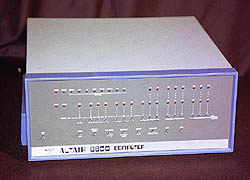
    Altair 8800

    Released in 1975
    Developed by Ed Roberts and Les Solomon
    Original price: $500


    Named after the destination for the Star Ship Enterprise in an episode of the original "Star Trek" TV series in the 1970s, the Altair desktop personal computer enjoyed a brief, yet passionate fling with the hearts and minds of computer hobbyists.

    Altair

    The project's genesis came in late 1974, when Popular Electronics technical editor Les Soloman reviewed plans for personal computers from readers around the nation. Dissatisfied with their proposals, he contacted his friend Ed Roberts, president of MITS, in Albuquerque, N.M.

    computer timeline

    The Cray I made its name as the first commercially successful vector processor. The fastest machine of its day, its speed came partly from its shape, a C, which reduced the length of wires and thus the time signals needed to travel across them.
    Project started:
    1972
    Project completed:
    1976
    Speed:
    166 million floating-point operations per second
    Size:
    58 cubic feet
    Weight:
    5,300 lbs.
    Technology:
    Integrated circuit
    Clock rate:
    83 million cycles per second
    Word length:
    64-bit words
    Instruction set:
    128 instructions

    Timeline

    The Atanasoff-Berry Computer is completed. Built at Iowa State College (now University), the Atanasoff-Berry Computer (ABC) was designed and built by Professor John Vincent Atanasoff and graduate student Cliff Berry between 1939 and 1942. While the ABC was never fully-functional, it won a patent dispute relating to the invention of the computer when Atanasoff proved that ENIAC co-designer John Mauchly had come to see the ABC shortly after it was completed.